



Design and schedule a week of posts from Claude.
Start by connecting your tools
You’ll need Claude, your Canva Brand Kit, and an Instagram professional account.
- 01
Connect Instagram to SocialRobot
Create your free account and connect Instagram under Accounts. The free plan includes two accounts and fifteen scheduled posts a month.
- 02
Add Canva and SocialRobot in Claude
In Settings → Connectors, choose Canva and sign in. Then add a custom connector with the details below and sign in to SocialRobot.
SocialRobot connector
- Name
- SocialRobot
- MCP server URL
- https://socialrobot.io/api/mcp
Tell Claude what you want to post
Copy the prompt and fill in the brackets. The example shows how a café could use it.
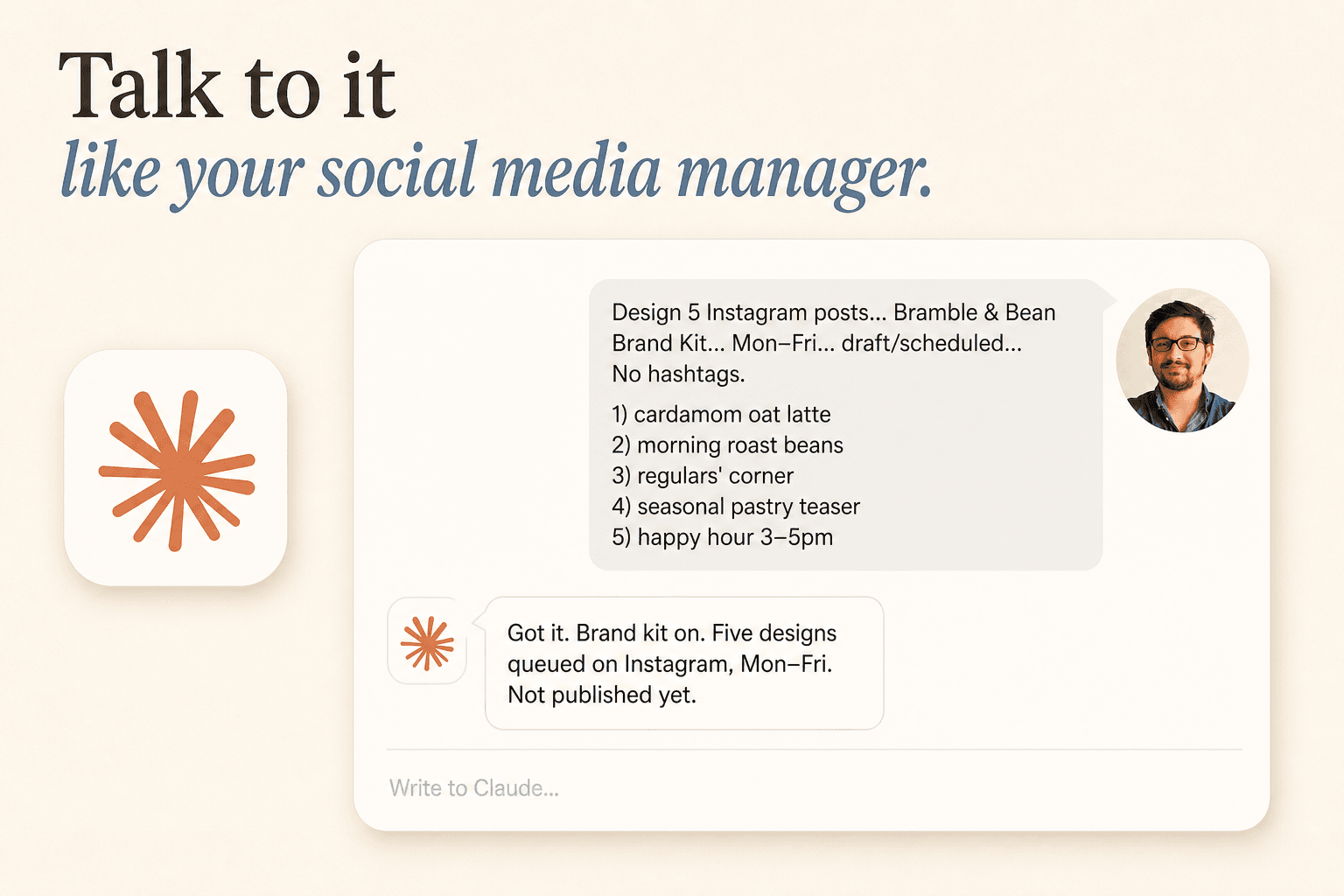
Design 5 Instagram posts in Canva using [BRAND KIT NAME], one per idea below, with no hashtags. Week starting Monday [YYYY-MM-DD], timezone [TIMEZONE].

Confirm my connected Instagram account in SocialRobot. Export the designs and save the posts as drafts. Propose a time for each weekday using SocialRobot’s suggestions. Show me the designs, captions, and dates, and wait for my approval before scheduling.

If information is missing, ask me. If a step fails, stop and report what was saved before retrying.

1) [MONDAY IDEA]
2) [TUESDAY IDEA]
3) [WEDNESDAY IDEA]
4) [THURSDAY IDEA]
5) [FRIDAY IDEA]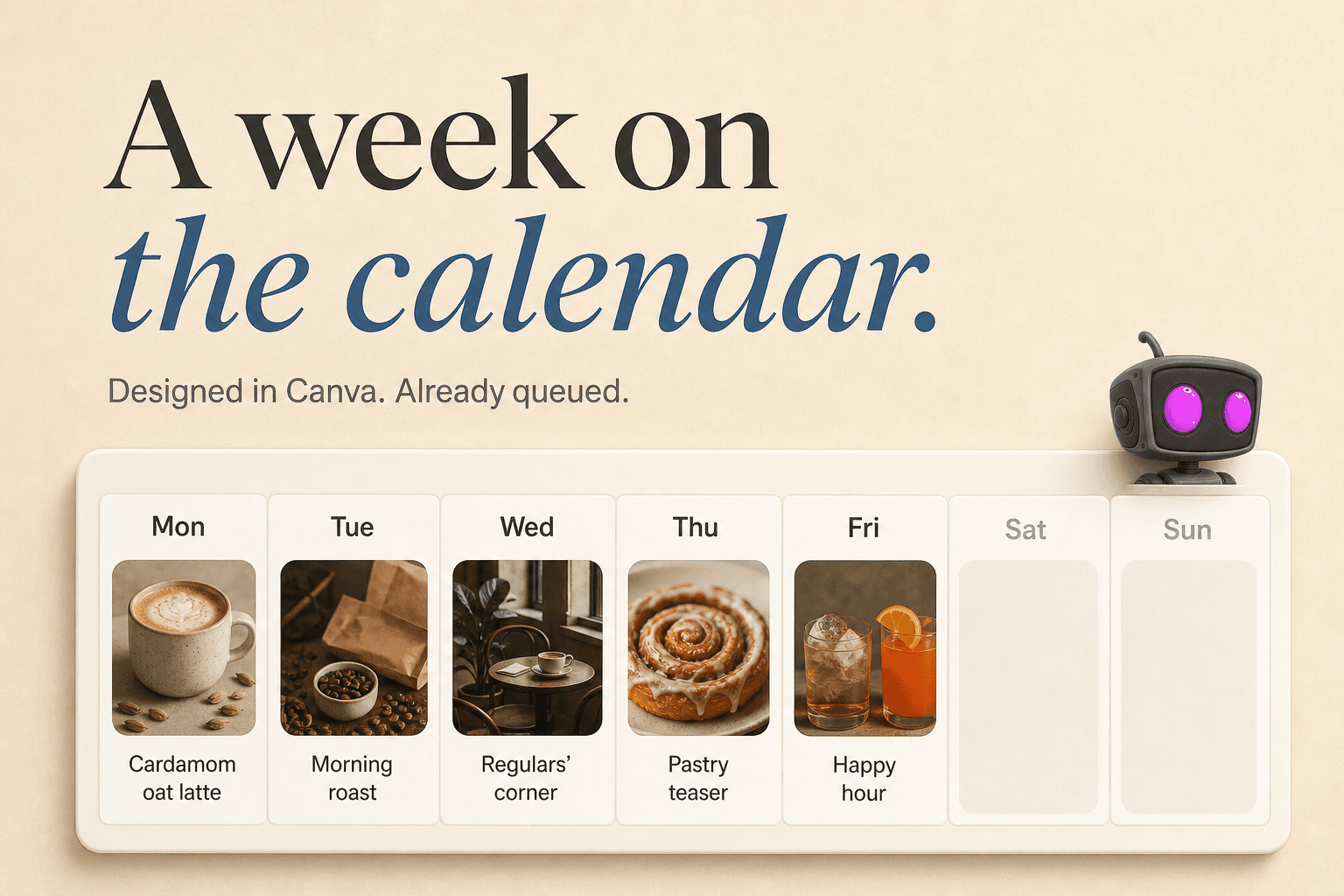
Next week’s posts, ready before Monday.
Review the designs, captions, and dates. When you’re happy, ask Claude to schedule the drafts in SocialRobot. Your posts will go out at the times you chose.
Start free2 accounts · 15 posts a month · No credit card
Subscribe
Get the next guide
More prompts to help you get your posts ready in less time.
By submitting, you agree to occasional guide emails from SocialRobot. See our privacy policy and terms. Unsubscribe anytime.

Start free
Your next post starts here.
Connect your accounts and try it with a real post. Two accounts and fifteen posts a month, free.
Start freeFree plan. No credit card required.